Guide: Tracking Conversions in Jane With GA4

One of the first questions we typically receive from our Health Division clients is “can you track within Jane?”. The answer to their delight is a resounding “YES!”.
If you’ve ever done therapy in Canada, then you’re likely familiar with Jane. Jane is one of Canada’s largest clinic management systems. It makes life easy for clinicians with access to health records, notes, billing and scheduling all in one place. Since it’s a specialized tool for the health industry, it comes with its own shortfalls that many healthcare tools also have: lack of native tracking and marketing data. As Jane has evolved over the years, their software has as well. Jane has let you embed Google Analytics 4 (GA4) for a while now and this blog post focuses on that. Jane also allows for Google Tag Manager integration as of recently, which you can expect our guide on in a new post soon. Okay, let’s get started: how does this actually work?
Enter Google Analytics 4
What’s the sauce then? Well, it’s how powerful GA4 actually is. Most of us are used to its predecessor Universal Analytics (UA). It was easy to use and had reporting configured for you out of the gate. Something we take for granted is just how powerful Google Analytics 4 really is. So to get started, one of the main beauties with GA4 is the ability to easily set up multiple streams and collect all the data under the same account. By that, I mean you can have the same GA4 tag living on Jane, but also living on your conversion platform, whether it’s your actual website, a landing page, or a blog post that you’re trying to convert off of.
The traffic between them is all measured using cross-domain attribution, which allows GA4 to then track somebody coming onto your website who then clicks outbound to Jane and eventually books or converts on Jane. In the past, this wasn’t doable, and people had to rely on clicks instead. Unfortunately, relying on clicks is still quite common in the healthcare industry. We have a few clients that still rely on clicks as conversion measure on their ads because their clinic tool of choice does not allow even for GA4 integrations. So now that we’ve established that cross-domain tracking is how this plays out, what are the next steps then?
Step 1: GA4
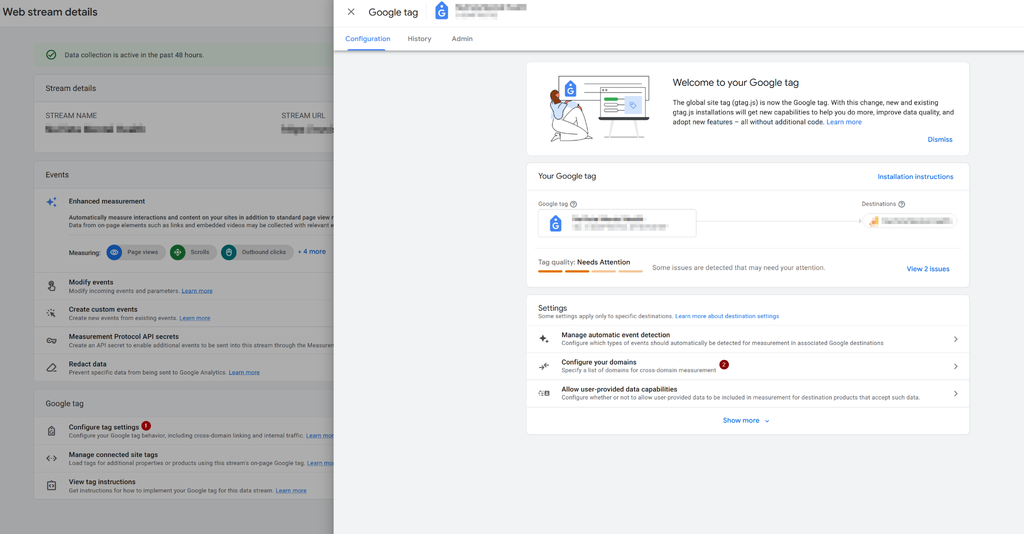
The next steps all start with Google Analytics 4. First, we have to set up our web stream. All accounts start with one web stream. Pick the one you use and record its Measurement ID. You’ll need this for step 2. Go into your web stream, click on Configure tag settings, and then click on Configure your domains. From there, add your Jane domain and make sure it’s saved.
Within your Google Analytics 4:
Step 2: Enter Jane
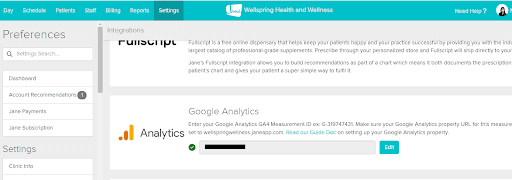
Log in to your Jane backend and go to Settings and Integrations. Find the Google Analytics option as seen below. Click edit and paste the Measurement ID that you copied from the data stream that you want to connect with Jane.
Within Jane:
Step 3: Back To GA4
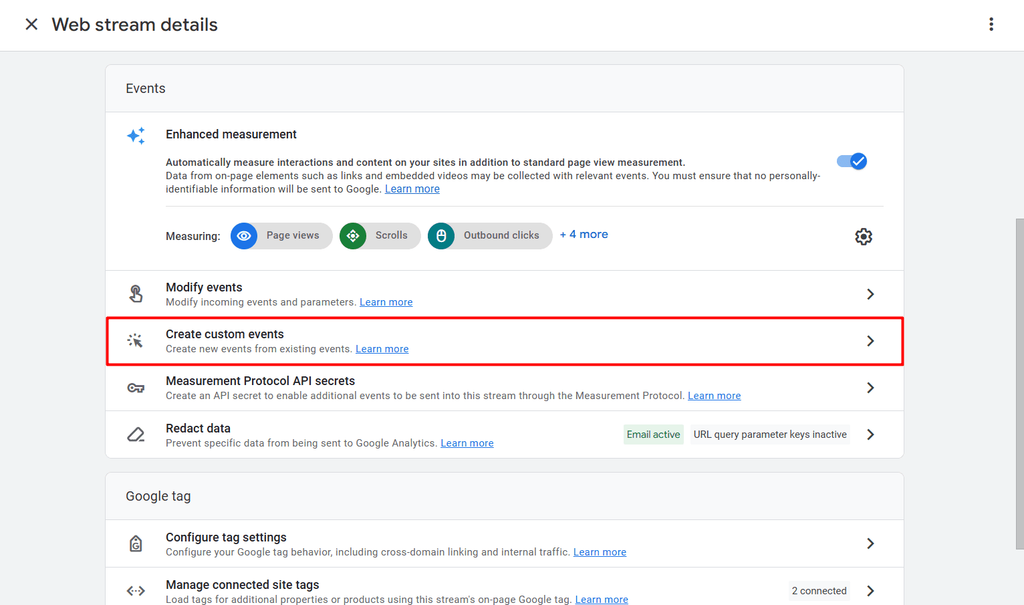
For step three, what you need to do is go back to Google Analytics 4, and now it’s time to create a custom event. This is going to be in the same window that we had before where you configured the tag settings to do the cross-domain linking. In that same window, under Events, you’ll see Create custom events. All you have to do is click on that, and a pop-up will appear if this is your first time.
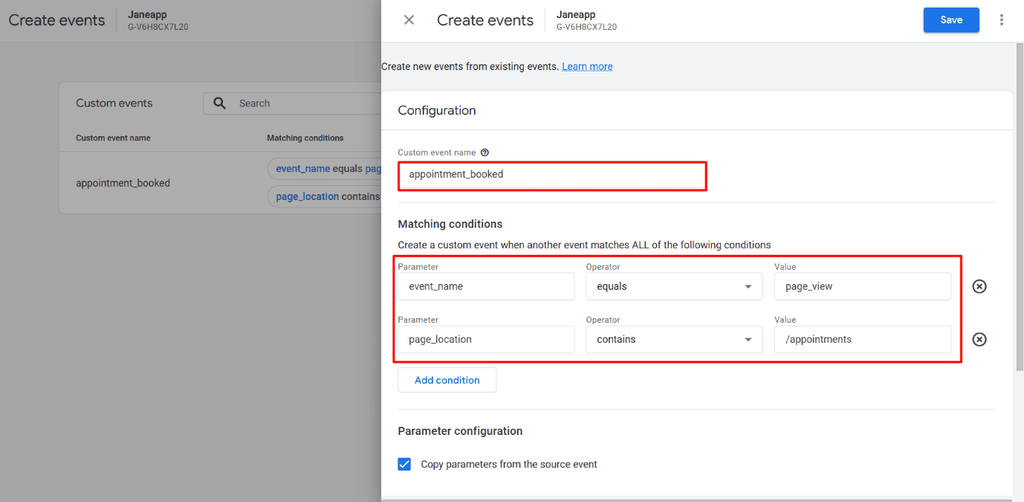
On that pop-up, click on Create, and following that, what we want to do is create an event that looks at a page. So it looks at a page to see if somebody visits that page. And the reason is this: The way Jane works is when somebody converts on a booking page and books an appointment, whether it’s a free consultation or a recurring client, they all get sent to the same thank you page, which contains ‘appointments’ in the URL.
So what we want to do is capture that event so that anytime somebody hits that thank you page that contains ‘appointments’, that sends an event to say that somebody landed here. Therefore, somebody had either booked in a free consultation or paid for a session.
Create a custom event:
Populate it to make sure that the conditions match what’s shown below:
This is basically it. You’ve now set up events to capture bookings within Google Analytics, congratulations! Now you can determine how traffic to Jane is coming in through your website. You’re able to see traffic source mapping, essentially. For example, which campaigns are driving engagement? Is it social media? Is it paid traffic? Is it direct traffic? Is it referrals? All that now becomes not just a black box, but actual visible data.
Obviously, your website has all this data already, but not necessarily about Jane. So now that you’ve set this up, you can determine, for the conversions that you do get on Jane, where they’re coming from. So now that you have GA4 configured, there’s one last step, and this is specific to Google Ads.
Step 4: Google Ads
Now we need to import this new key event to Google Ads from Google Analytics 4 and set that as a primary conversion goal so that it helps your bidding process within Google Ads to go after actual conversions as opposed to clicks moving forward. Let’s do that:
From within Google Ads, click on Goals, and let’s create a new conversion goal. When you’re creating a new conversion goal, you will want to pick conversions on a website, since this allows you to import events from Google Analytics:
Choose the GA4 connector that’s linked to your account:
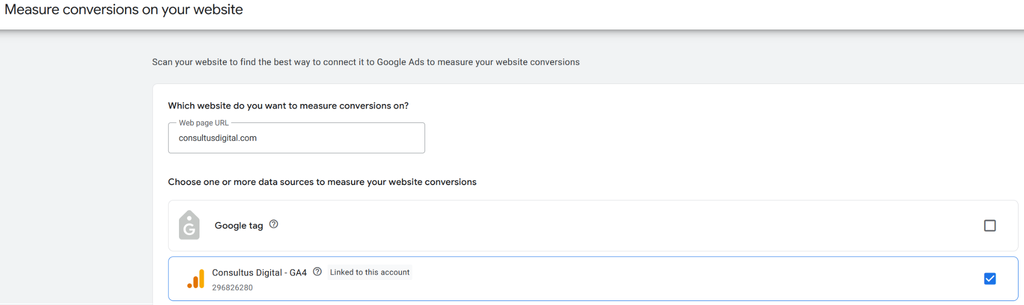
Choose “Book appointment” or another relevant category depending on your business:
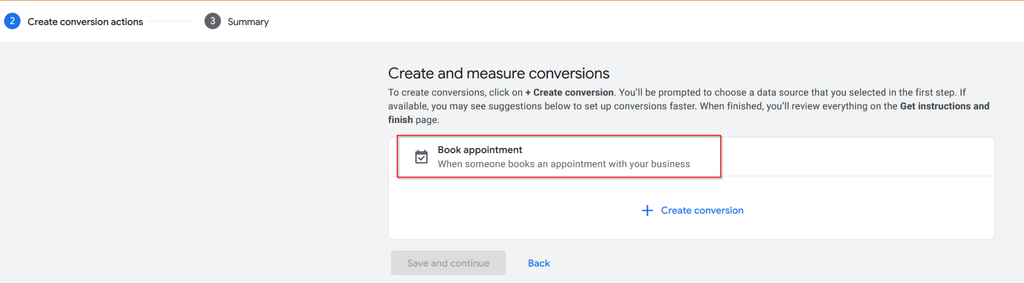
Click the “+ Create Conversion” and choose the event that you had created earlier from Step 3:
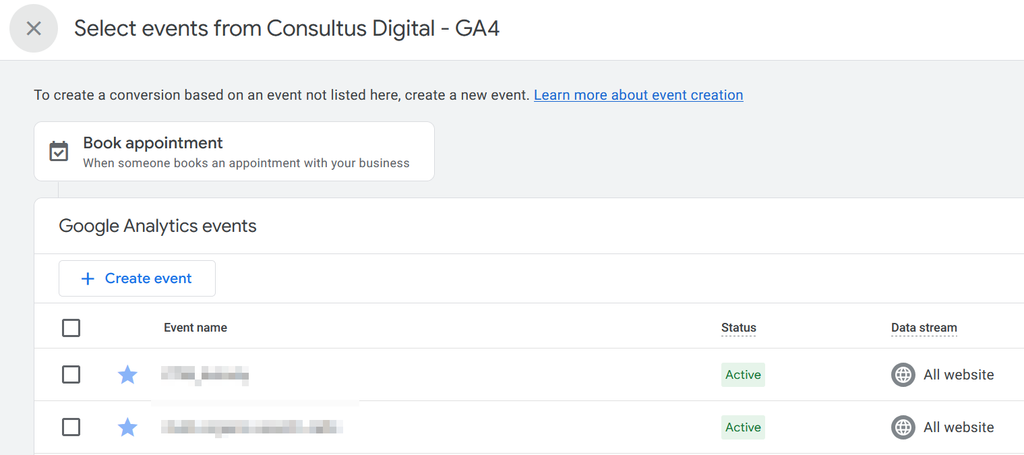
Save the conversion and you’re all done!
Now that we’re connected on Google Ads, it’s only a matter of time for the data to sync and for your results to start showing within Jane.
Limitations & Good To Knows
Let’s actually talk about a few of the considerations with this methodology and this platform.
Data Latency
First, it’s the data latency. Basically, it typically takes forty-eight to seventy-two hours for data to begin populating accurately in Google Analytics after initial setup. So the first day or two, you might be missing out on conversions that happen during this period of time. This is totally normal, but it’s good to know about.
Reporting Accuracy
The second issue is reporting accuracy, and this really stems from the fact that you are relying on a page view of that appointments page to determine if somebody converted or not. Sometimes an ad blocker could prevent that from properly registering. This is a common issue. iOS conversions also face similar issues. And finally, sometimes user error could also prevent this from working properly. If somebody refreshes the page, that might count as two conversions. If somebody closes the page quickly, that might not even register as a conversion. So there are some faults with this method, and it’s important to recognize them all and anticipate them.
New vs. Repeat Clients
This issue is specific to Google Ads. As many of you might know, sometimes a client or a customer will click on an ad to convert as they see your name pop up, especially if you’re running a brand campaign. This client or customer might have already converted before, but they click on the ad anyways, land on the website, and convert again in a different session. When something like that happens, since we’re only judging it based on appointments and the page load, we can’t really determine if this is a new client or a returning client. So those stats, if you need to differentiate them, might be a bit more wonky given this specific type of integration. So that’s also something else to just be mindful of.
Looking Forward
This article covers tracking Jane within Google Analytics 4. However, as indicated earlier, Jane also now has tracking through Google Tag Manager. Google Tag Manager is definitely a superior way to track, as you can load more than just the Google Analytics script and fire conversions server-side, which is not going to be adblocked and is able to give you more data, such as revenue metrics as well as whether this is a first-time booking or a repeat customer or client. In our next guide, we will cover server-side booking and what that looks like, and why you should switch to that instead if you’re able to.